| Design area | What it involves | Planning use |
|---|---|---|
| Digital design disciplines | Includes UI design, UX design, interaction design and visual design | Treat them as separate skill areas on one product and decide who covers each before work starts. |
| Visual hierarchy | Guides attention to the most important screen elements using contrasting colors, typography and whitespace | Decide what a user should notice first on every screen, then style to match. |
| Consistency | A uniform design language, visual style and set of interaction patterns across the product | Record shared patterns once so users never have to relearn them. |
| Touch targets | Buttons and interactive elements sized appropriately for finger taps | Test on a real touchscreen before handing designs over. |
| Mobile-first layout | Prioritize the design for smaller screens, then enhance for larger ones | Start layouts from the smallest screen you support. |
| Wireframing | Low-fidelity sketches or mockups of a software UI | Use first to settle structure before any visual polish. |
| Prototyping | Tools that let you build and run prototypes of the product | Use once the structure is settled and you want to test ideas with people. |
The definitions above come from Claritee’s guide to digital design principles and LinkedIn’s advice on software design tools.
This digital design guide for software links visual choices to usability: start with structure and hierarchy, keep patterns consistent, then polish. Your starting point depends on whether you are defining a product, sketching screens or fixing an existing interface.
If you want the full sequence from research to handoff, The UX/UI Design Process: A Step‑By‑Step Guide To Designing Products Users Love (2026) – Interestingdevelopment walks through it stage by stage. This page is the wider map: what each part of digital design does, how it affects the people using your software, and which deeper guide to open next.
Choosing where to start
The right first step is the one that removes your biggest uncertainty. A team that does not yet know what to build needs different work from a team with a live product and confusing screens. Use these situations as a quick filter.
- You are unsure who the product is for. Start with people, not pixels. Learning how to create a user persona gives later layout decisions a reference point, and it works best when built from real research rather than assumptions.
- You have an idea but no agreed direction. A short, structured exercise can settle it. If you are asking what is a design sprint, that guide explains a process for testing a product idea before you commit to building it.
- You know the idea and need to show structure. Move to wireframes. They are cheap to change and keep attention on layout and flow instead of color.
- You have a live product that feels inconsistent. Audit repeated patterns first. Consistency problems usually come from the same element being solved differently in several places, and the fix is a shared set of rules.
- You are new to design tools. Pick one tool for one task, learn it, and widen later. The tool section below explains how to choose.
Whichever route fits, the same logic applies: settle structure before style, and settle style before polish. The next section clarifies the vocabulary so the later advice is easier to apply.
What digital design covers in software
Digital design is a group of related disciplines rather than a single job. According to Claritee, it includes user interface (UI) design, user experience (UX) design, interaction design and visual design. For software specifically, Ezteksoftware notes that UX and UI design are crucial for digital products such as websites, apps, games and other software.
UX design and UI design: where the line sits
The difference between UX and UI design is one of scope. UX design concerns the whole experience of using the software: whether a person can reach their goal, how the steps connect, and how intuitive it feels. UI design concerns the interface itself: the screens, controls, type and color a person sees and touches. The two are tightly linked, because the same sources describe them together as what determines how users interact with the software and how intuitive it feels.
In practice, a product can fail on either side. A beautiful interface can still send people through a confusing sequence, and a sound sequence can still be hard to use if buttons are unclear or hierarchy is weak. That is why it helps to name an owner for each side, even on a small team where one person holds both roles. For a fuller comparison and advice on which discipline to build skills in first, see UI vs UX Design: What’s The Difference And Which One Should You Choose In 2026? – Interestingdevelopment.
Interaction design and visual design
Interaction design deals with how an interface responds when someone acts: tapping, selecting, moving between screens. Visual design deals with how the interface looks: color, typography, whitespace and the way they combine to direct attention. The two meet in decisions such as a button’s appearance and what it does when pressed. Keeping them distinct in your planning helps you diagnose problems. If people miss a control, look at visual hierarchy. If they find it but are surprised by the result, look at interaction.
Why principles matter for long-lived software
Software is rarely finished. Docuwriter frames good software design principles as essential for building applications that work well and stand the test of time. For interface work, this argues for decisions you can explain and repeat, not one-off tweaks. A principle such as consistency is useful precisely because it still applies when new screens are added later.
Visual choices that affect usability
Every visual choice either helps a person complete a task or gets in the way. The goal is not decoration. It is to make the next action obvious and the screen easy to scan. The areas below are the ones the evidence ties most directly to usability.
Visual hierarchy
Visual hierarchy guides users’ attention to the most important elements on the screen, and, as Claritee describes it, designers build it with contrasting colors, typography and whitespace. Use it as a ranking exercise. List what the person needs to see first, second and last on a given screen, then check that your styling reflects that order. If everything is emphasized, nothing is. A common fix is to remove emphasis from secondary items rather than add more to the primary one.
Dense, data-heavy screens test hierarchy hardest. If you design dashboards or admin views, Dashboard UI Design: Build Clear, Actionable Interfaces In 2026 – Interestingdevelopment applies these ideas to screens where many items compete for attention.
Consistency and design systems
Consistency means maintaining a uniform design language, visual style and interaction patterns throughout the digital product. The payoff is practical: according to Claritee, consistency reduces cognitive load because users do not have to relearn or adapt to new design patterns. A related idea, conceptual integrity, means keeping the overall design consistent and easy to understand, as Docuwriter puts it.
A design system is the usual way to protect this. It collects the shared decisions, such as colors, type styles, components and interaction patterns, so that each new screen draws from the same source instead of reinventing them. Whether you need a formal one depends on your team and how many screens you maintain. Even a small product benefits from a written list of its button styles, heading styles and spacing habits. Build a fuller system when several people are designing or building screens at once and drift starts to appear.
Clear, minimal design
A clear and minimalistic approach can significantly improve the user experience by reducing clutter and cognitive load, according to Claritee. Treat minimalism as a test applied to each element: does it help the person do what they came to do? If not, remove it or move it out of the main path. This does not mean stripping a product of necessary options. It means giving the main task room and revealing secondary options when they are needed.
Color and type
Color and typography do much of the work of hierarchy, so they are also where usability problems hide. Low-contrast text can make an otherwise tidy screen hard to read for many people. The practical guidance on checking and fixing this is in Color Contrast Accessibility: A Practical Guide To Clear, Compliant Design In 2026 – Interestingdevelopment, which is the place to go when you need to meet accessibility requirements rather than just aim for readability.
For type, restraint helps. Choose a small set of styles and reuse them for the same roles, so a heading always looks like a heading. If you are choosing typefaces to sit together, Font Pairing Examples: Simple, Stylish Combinations You Can Use Today (2026) – Interestingdevelopment offers combinations to start from.
Touch targets
On touchscreens, buttons and interactive elements should be sized appropriately for finger taps, as Claritee advises. The reason is simple: a fingertip is less precise than a pointer, and small or crowded controls cause mis-taps. Check this on a real device rather than only on a desktop preview, and give controls room around them, especially when two actions sit close together and one has a bigger consequence than the other.
Designing for different screen sizes
Software now reaches people on screens of very different sizes, so layout decisions have to hold up across them. Claritee states that designing for responsiveness and adaptability requires a mobile-first approach, prioritizing the design for smaller screens and then enhancing it for larger ones.
Why start small
A small screen forces decisions about priority. When space is tight, you cannot keep everything, so you have to rank content and actions. That ranking then carries upward: larger screens add room and secondary content around a core that already works. Designing the large layout first usually means squeezing it down later and cutting things in a hurry.
Responsive and adaptive approaches
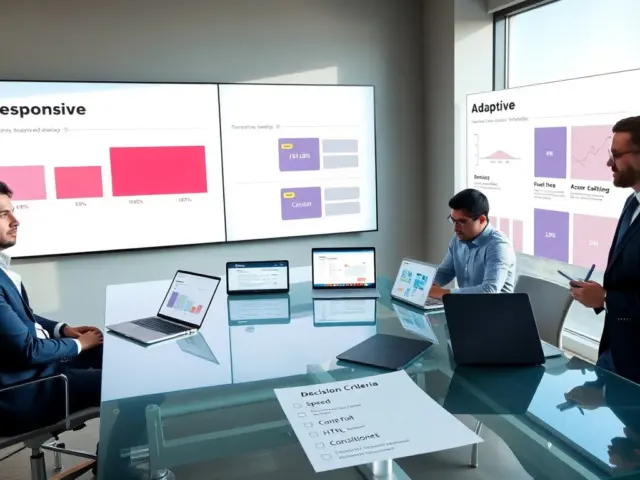
Two approaches are often compared. Responsive layouts adjust fluidly to the space available, while adaptive layouts switch between defined arrangements. Which suits your product depends on how varied your content is and how much control you need over specific layouts. Responsive vs Adaptive Web Design: How to Choose the Best Approach for Your Site in 2026 – Interestingdevelopment compares them directly. Once you choose responsive, Responsive Web Design Best Practices: Build Fast, Flexible Sites In 2026 – Interestingdevelopment covers how to build it well, and Responsive Web Design Examples: Practical Patterns That Scale In 2026 – Interestingdevelopment shows layouts you can adapt.
From research to wireframes and prototypes
Early design work is about reducing risk cheaply. Each stage produces something more concrete than the last, and each is easier to change than finished code. Moving in this order means you commit to expensive decisions only after the cheap ones have been tested.
Understand people and their paths
Before drawing screens, know who they are for and what route people take. Personas summarize the people you design for, and a user flow maps the path from entry to goal. A flow shows where people might hesitate or drop out, and it exposes missing screens early. App User Flow: Design Clear Paths That Boost Retention And Conversions (2026 Guide) – Interestingdevelopment explains how to design those paths. Examples of patterns that have worked in real products are collected in UX Design Examples: 12 Real-World Patterns That Boost Usability In 2026 – Interestingdevelopment.
Wireframes: settle structure first
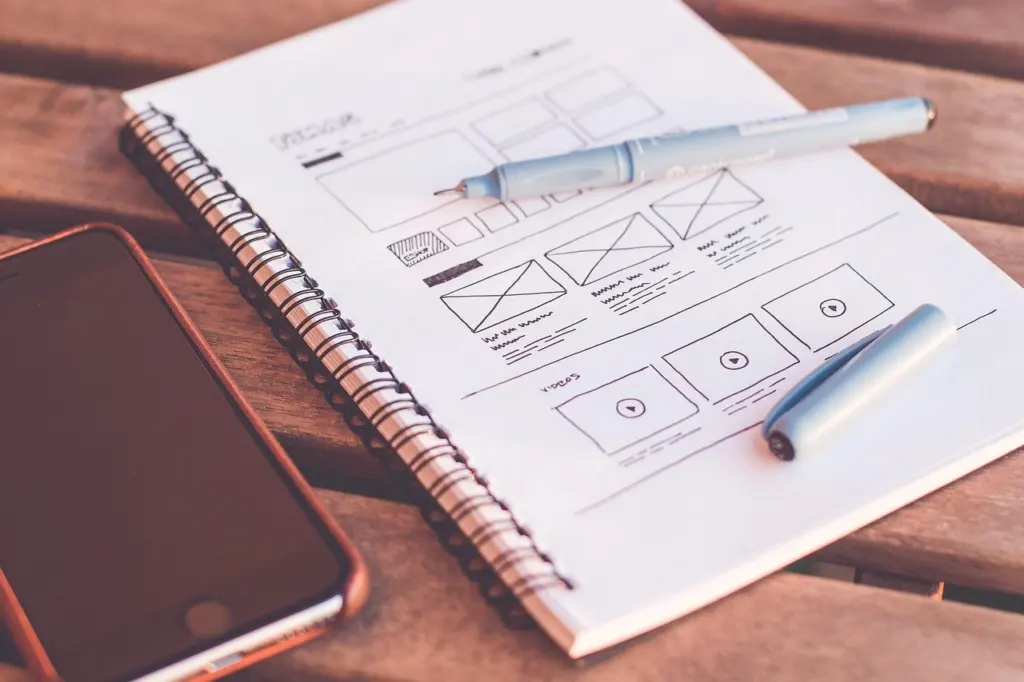
Wireframing is the practice of creating low-fidelity sketches or mockups of a software system’s user interface, as LinkedIn’s design tools advice defines it. The same source says wireframing tools help you prototype and test UI design ideas and communicate them to stakeholders. The value of keeping a wireframe rough is that people react to structure, not to color or typeface.
Paper is a legitimate starting point, because it costs nothing and is quick to redraw. Move to a digital tool when you need to share work remotely or keep several versions. For the concept in more depth, read What Is a Wireframe? A Practical Guide to UX Blueprints (2026) – Interestingdevelopment, and if cost is a concern, Best Free Wireframe Tools In 2026: How To Pick The Right One Fast – Interestingdevelopment compares no-cost options.
Mockups and prototypes: add detail once structure holds
A mockup applies visual design to the structure: real colors, type and imagery. A prototype adds behavior. According to LinkedIn, prototyping tools allow you to build and run your prototypes and to simulate the user experience and data flow of the system. Build a prototype when you want to learn whether people can complete a task, not just whether the screen looks right. How To Create A Website Mockup: A Practical 2026 Guide To Faster, Clearer Design – Interestingdevelopment covers the mockup stage step by step.
Interface text and screen types
Words are part of the interface. Button labels, error messages and short instructions shape whether people understand what to do next, and a polished layout cannot rescue unclear wording. If you are asking what is ux writing, that guide explains how to write clear interface text. Plan for it during wireframing, not at the end, so layouts have room for the text they need.
Different screen types raise their own demands. Dashboards need strong hierarchy because many items compete for attention. Forms need clear sequence and labels. Mobile screens need generous controls. When you meet a screen type you have not designed before, study working patterns first and adapt them, rather than inventing a layout from nothing.
Choosing design tools
Tools matter less than the thinking they support, but the right one removes friction. The pack’s source groups tools by task: wireframing tools and prototyping tools. That grouping gives a sensible way to choose, because it asks what you need to produce right now.
A task-based comparison
| Tool | Listed as an example of | Planning use |
|---|---|---|
| Balsamiq | Wireframing tool | Consider it when the job is low-fidelity layout sketching. |
| Figma | Wireframing tool | Consider it for wireframes you also want to share and discuss with stakeholders. |
| Sketch | Wireframing tool | Consider it for interface layout work in the same category. |
| Adobe XD | Prototyping tool | Consider it when you want to build and run a prototype. |
| InVision | Prototyping tool | Consider it when the goal is simulating flow between screens. |
| Axure | Prototyping tool | Consider it for prototypes that simulate the user experience and data flow. |
The categories come from LinkedIn’s software design tools advice, which gives Balsamiq, Figma and Sketch as wireframing examples and Adobe XD, InVision and Axure as prototyping examples. Treat a category as the tool’s typical use, not a limit, and compare current features on each vendor’s own documentation before you commit.
Which design tool is best for beginners?
No single tool wins for every beginner, so choose by the task in front of you. If you are starting with layout, pick one of the wireframing tools, such as Figma, and spend your first sessions on structure rather than on exploring every feature. If you later need to test flow between screens, add a prototyping tool such as Adobe XD for that step. Two habits make any first tool easier: work from a single small project, and begin on paper if the software feels like a barrier. For a wider look at options, UX Design Tools: The Practical 2026 Guide To Choosing The Right Kit – Interestingdevelopment compares kits across the design workflow.
A working order for a new interface
The sequence below turns the guidance above into a repeatable order. Adjust it to your team size, but keep the logic: cheap decisions first, expensive ones last.
- Define the people and the goal. Write down who the interface serves and what they need to accomplish.
- Map the path. Draw the flow from entry to goal so missing screens appear before you draw any.
- Sketch structure. Make low-fidelity wireframes on paper or in a tool and test them with someone outside the team.
- Set the shared rules. Decide colors, type styles and component behavior once, and record them for reuse.
- Apply visual design. Build hierarchy with contrast, type and whitespace, and check that touch targets suit finger taps.
- Prototype and test. Run the prototype with real tasks, then revise structure before polishing details.
Notice that the shared rules come before full visual design. Doing it in this order stops small inconsistencies from multiplying across screens. If a late test shows a structural problem, go back to the wireframe instead of patching the visual layer, because styling cannot fix a flow that does not work.
Keeping visual choices current
Visual conventions shift over time, and some shifts affect usability while others are only style. Judge any trend by asking whether it makes the main task easier. A treatment that adds clutter or lowers readability costs users more than it gives. UI Design Trends 2026: 7 Essential Shifts Every Designer Should Know – Interestingdevelopment tracks the current changes, which is useful for deciding what to adopt and what to ignore.
The durable parts of this guide change much more slowly: hierarchy that directs attention, consistency that spares users from relearning patterns, controls sized for fingers, and layouts that start from small screens. Anchor your decisions in those, and treat trends as optional extras applied to a sound base.
Frequently asked questions
Do I need a design system for a small product?
A formal system is not required at first. A short written record of your colors, type styles and button behavior gives you much of the benefit, because consistency spares users from relearning patterns. Build a fuller system when several people are producing screens.
Should wireframes come before prototypes?
Usually yes. Wireframes are low-fidelity sketches that settle structure, while prototyping tools let you build and run something people can try. Testing structure first means fewer expensive changes later.
Is minimal design always the better choice?
Not automatically. A clear, minimalistic approach can improve the experience by reducing clutter and cognitive load, but you should keep whatever the task genuinely needs. Remove elements that do not help the person reach their goal, and keep the ones that do.
Where should a new designer begin?
Begin with wireframes for a small, real project. They let you practice structure and hierarchy without the distraction of polish, and they lead naturally into mockups and prototypes once the layout holds up.