How to create a website mockup is a common question for designers and teams. This guide gives clear steps and practical tips. It shows when to use mockups, how to plan, and how to build high-fidelity screens. The reader will learn a workflow that saves time and reduces rework. The content uses direct language and clear examples for fast adoption.
Key Takeaways
- Creating a website mockup provides a visual preview that helps teams align on design, reduce guesswork, and catch visual issues early.
- Use website mockups after user research, wireframes, and before development handoff to ensure efficient project flow and clear communication.
- Plan your mockup by defining clear goals, user flows, and selecting tools like Figma or Adobe XD that fit your workflow and collaboration needs.
- Follow a step-by-step workflow starting from low-fidelity wireframes to high-fidelity, applying style guides and testing for readability and accessibility.
- Utilize reusable components and responsive variants to maintain consistency, save time, and optimize mockups for different devices.
- Prepare detailed handoff materials including assets and specs to reduce developer ambiguity and ensure a smoother build process.
Why Website Mockups Matter And When To Use Them
A website mockup gives a visual preview of a page. Designers use mockups to test layout, content, and visual hierarchy. Stakeholders use mockups to judge look and feel before development. A clear mockup reduces guesswork for developers and content writers. Teams use mockups when they need feedback on design direction or when they must align on brand details.
A mockup shows spacing, typography, and color choices. It communicates interaction intent without full code. A well-made mockup finds visual issues early and saves development hours. For simple pages, a low-fidelity mockup can suffice. For final sign-off, teams prefer a high-fidelity mockup that represents the live site closely.
Use mockups at three moments in a project. First, use them after user research to explore layout ideas. Second, use them after wireframes to validate visual choices. Third, use them before handoff to ensure developers and QA have a clear reference. This order helps the project stay efficient and avoids large late-stage changes.
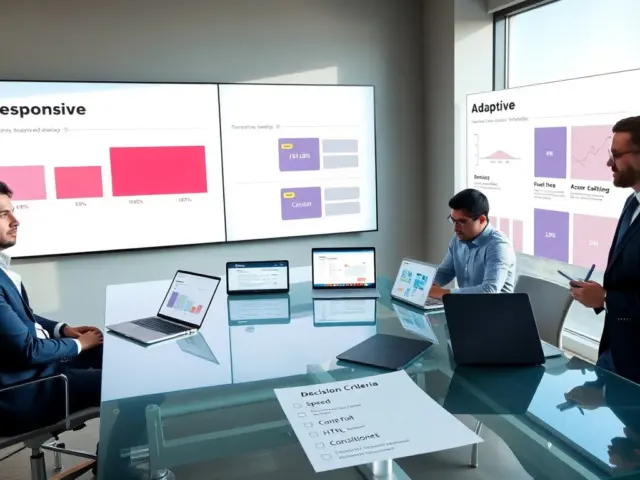
A mockup also helps with responsive planning. Designers can present one desktop mockup and one mobile mockup to show key differences. That approach clarifies content priority and reduces back-and-forth during development. In short, a mockup speeds decisions and improves final quality.
Plan First: Define Goals, User Flows, And Choose The Right Tools
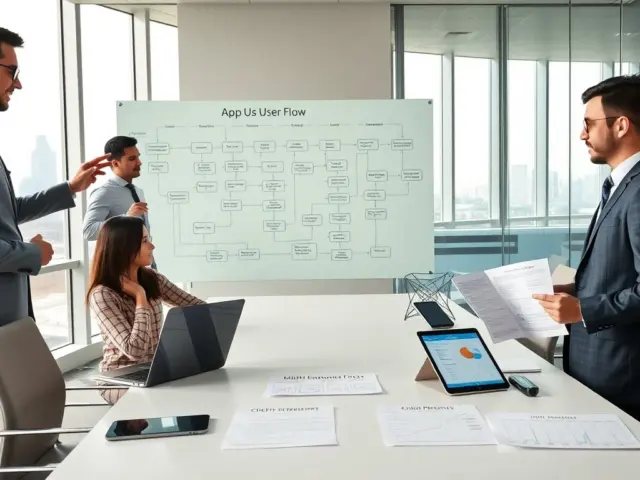
Project leads must set clear goals before any visual work. They must state the page purpose, the target action, and the main metrics. The team must list required screens and any dynamic states. They must map the user flow from entry point to conversion. This map helps the designer decide which screens to mock up and what elements must appear on each screen.
The team must pick tools that match project needs. For quick iterations, designers often pick Figma or Adobe XD. For detailed visual polish, the team may choose Sketch or Figma with design system assets. For pixel-perfect export to developers, the team may use Figma with handoff plugins. The choice depends on collaboration needs and the developer workflow.
The project must include a style guide or component library when possible. A style guide speeds mockup production and keeps visuals consistent. The team must define colors, type scales, button states, and spacing rules before building high-fidelity screens. They must also decide if they will include real content or use realistic lorem ipsum. Real content gives better visual feedback.
The planner must set review points and decision owners. Reviews must focus on user goals, content clarity, and accessibility. Decision owners must approve key items such as headings, CTAs, and imagery. This planning step reduces late changes and keeps the mockup aligned with business goals.
Step-By-Step Mockup Workflow With High-Fidelity Tips
Start with a low-fidelity wireframe to lay out structure. The designer sketches or builds grayscale screens to place elements. The team reviews wireframes to confirm content order and flow. After approval, the designer creates a mid-fidelity mockup and adds spacing and basic typography. This step confirms visual rhythm before adding color.
Next, the designer builds the high-fidelity mockup. The designer applies the style guide, adds brand colors, and chooses imagery. The designer defines button states, hover effects, and error states. The designer also shows form validation states and success messages. The team reviews these details to ensure clarity and accessibility.
Designers must test the mockup for contrast and readability. They must check color contrast for text and interactive elements. They must verify font sizes against common screen sizes. They must label components clearly for developers. The designer should include measurements and padding notes on the mockup to speed implementation.
Use components and variants to reduce repetition. The designer should build buttons, cards, and form fields as reusable components. This method saves time and keeps the mockup consistent. The designer should create responsive variants for mobile and tablet. The team should test breakpoints and adjust content order for small screens.
For handoff, the designer should prepare an assets folder and a component spec. The folder must include exported images, SVGs, and font references. The spec must list interactions, animations, and API data needs. The designer must tag assets with names the developer can use directly. This practice reduces ambiguity and speeds build time.
Finally, the team must plan one more review after development begins. The designer should check the first build against the mockup and mark any visual gaps. The developer should raise technical limits early. The team should iterate on the mockup or code until the page meets visual and functional goals.
A clear workflow helps teams produce consistent mockups. It helps them move from concept to a finished page faster. Teams that follow this workflow cut rework and deliver a better user experience.