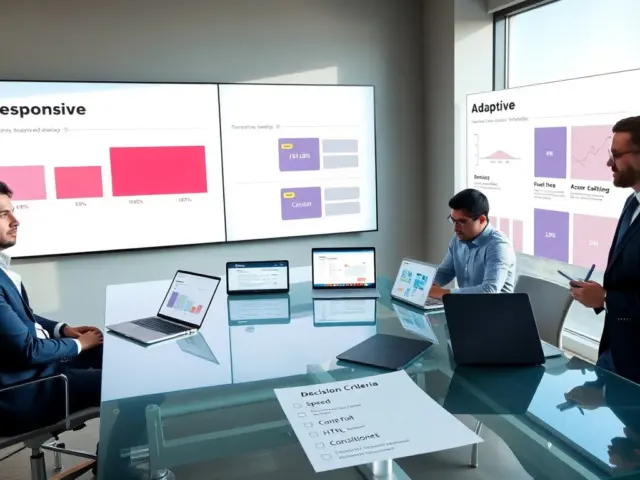
Dashboard UI design helps teams see data and act fast. It sets user goals, shows key metrics, and reduces decision time. Teams use dashboards to monitor health, spot trends, and assign work. Good dashboard ui design places the right numbers in clear spots. It uses consistent visuals and simple words. This article gives focused rules and patterns to improve dashboard ui design for web and mobile in 2026.
Key Takeaways
- Effective dashboard UI design starts by defining user goals, roles, and key metrics to ensure relevant data drives decision-making.
- Organizing information architecture and setting a clear KPI strategy enhances data priority, clarity, and user trust in the dashboard.
- Using grids, cards, and proper visual hierarchy guides users’ attention to primary metrics and improves readability.
- Consistent component patterns, like charts and tables with meaningful colors and labels, reduce errors and make dashboard UI predictable.
- Intuitive interaction design with controls, filters, and drilldowns supports fast analysis by allowing users to explore data details easily.
- Accessibility, performance, and maintainability best practices ensure the dashboard UI is reliable, inclusive, and scalable over time.
Define User Goals, Roles, And Key Metrics
Teams must list users, tasks, and decisions before they design. The designer identifies who will use the dashboard and what decision each user must make. Stakeholders then rank goals by business impact and frequency. The product team maps roles to permissions and views. The metric lead picks a small set of KPIs that match each role. The designer shows one clear primary metric per screen and a few supporting metrics nearby. This approach keeps dashboard ui design focused and reduces noise. The team reviews metrics weekly and removes metrics that do not drive action.
Practical steps to make this tangible include: run short discovery interviews with representative users to capture their daily workflows; create role-based persona cards that list top tasks and the decisions tied to each task; and produce a metrics matrix that links each KPI to the responsible owner, the data source, its refresh cadence, and an intended action when thresholds are met. Avoid overloading a single view—if two distinct roles have different primary needs, either create role-specific views or a configurable layout that surfaces the relevant KPIs on demand.
Prioritize Data: Information Architecture And KPI Strategy
Information architecture organizes data by priority and flow. The IA groups metrics by theme and groups actions with related numbers. The KPI strategy sets thresholds, units, and update cadence. The designer uses labels that match user language and avoids jargon. Data sources get tagged with origin and freshness. The dashboard then surfaces stale or missing data clearly. The team defines which numbers need alerts and which need trend lines. This clarity improves trust and makes dashboard ui design predictable for end users.
Apply a layered approach: surface only headline KPIs on the top layer, offer contextual metrics on a mid layer, and provide raw data or exports in a drilldown layer. Use consistent naming and units across the board (e.g., always show currency with locale formatting). Maintain a single source of truth for each KPI and document transformation rules so users can understand how numbers were calculated. Include a short “about this KPI” tooltip or modal for complex metrics to reduce questions and increase adoption.
Layout And Visual Hierarchy: Grids, Cards, And Density
The layout guides the eye to the most important metric first. Grids give alignment and rhythm. Cards separate contexts and contain titles, numbers, and actions. The designer picks a density that matches task speed: low density for overview, higher density for power users. Visual weight comes from size, color, and position. The primary card sits top-left or center depending on reading patterns. White space helps teams read values faster. The layout choices form the backbone of effective dashboard ui design.
Design patterns to use: establish a flexible grid system (e.g., 12-column) so cards can span different widths responsively; use larger typography and stronger color for the primary metric and subtler styles for secondary metrics; and keep interactive controls visually connected to the content they filter. Consider multiple density presets that users can toggle—an “overview” mode with larger cards and an “analyst” mode with compact, data-dense tables and small multiples. Always prototype on target screen sizes and test how many cards users can scan within a single glance.
Component Patterns For Dashboards (Charts, Tables, Tiles)
Charts show trends and comparisons. Line charts work for time series and bar charts show categories. Tables show raw rows and let users export or sort. Tiles show single numbers with context and sparkline. Each component uses clear labels, units, and short tooltips. The designer avoids decorative legends and keeps the axis range consistent across similar charts. Color carries meaning and stays consistent across components. These component rules make dashboard ui design predictable and reduce user errors.
Additional component guidance: standardize a small set of chart types and variants so users learn patterns quickly; provide annotation and reference lines for targets or thresholds; show comparison deltas (period-over-period) close to headline values to reduce cognitive load; and offer downloadable CSV or link-to-source options for tables and charts to support deeper analysis. Use microcopy inside tiles for immediate context (e.g., “vs. last week” or “target: 90%”) and keep interaction affordances—hover, tap, or focus—consistent across components.
Interaction Design: Controls, Filters, And Drilldowns
Interactions let users move from overview to detail. Controls include date pickers, quick ranges, and prebuilt filters. Filters save state and show active selections. Drilldowns link high-level metrics to raw records or filtered views. The designer places controls near the data they affect and keeps defaults sensible. The UI shows applied filters clearly and provides a quick reset. The team tracks common filter combinations and offers them as shortcuts. These interaction patterns help the dashboard ui design support fast analysis.
Best practices: make filter state shareable via URL or saved views so teams can collaborate on the same context; expose recently used or favorite filter sets to speed repeat tasks; ensure keyboard and touch interactions are smooth and discoverable; and include progressive disclosure so advanced controls are available without crowding the primary screen. For drilldowns, preserve breadcrumb context and allow users to return to the parent view with one click. Log common interaction paths to inform future UX improvements.
Accessibility, Performance, And Maintainability Best Practices
Accessibility ensures all users read and act on data. The designer uses semantic HTML, clear contrast, and keyboard focus order. Charts include text summaries and ARIA labels. Performance keeps render times low by lazy loading heavy components and caching API calls. The codebase uses modular components and documented props so teams can update visuals without breaking pages. The team adds automated tests for data accuracy and layout. These practices make dashboard ui design reliable, fast, and easy to maintain.
Consolidated checklist to operationalize these practices: run automated color-contrast checks and manual screen reader tests for every screen; set performance budgets (time-to-interactive and largest contentful paint) and monitor them; implement incremental loading for large datasets and paginate or virtualize long tables; use versioned component libraries and story-driven documentation so designers and engineers share a contract; and create end-to-end tests that validate both the visual layout and the numeric integrity of KPIs after deployment. Regularly schedule UX audits and data-quality reviews so the dashboard ui design remains trustworthy as the product grows.