UX design examples appear at the start of every strong product. Designers show feedback, guide users, and reduce errors with clear patterns. The article lists practical patterns that teams can copy. It helps product managers, designers, and developers spot ideas that work. The writing stays direct and focused to help readers act quickly.
Key Takeaways
- UX design examples demonstrate how microinteractions improve user feedback, prevent errors, and add delight with concise, purposeful animations and sound.
- Effective onboarding flows reduce drop-off by focusing on one task at a time, using progressive disclosure, clear messaging, and personalization.
- Responsive layouts adapt content and navigation for various devices, ensuring usability with flexible grids, appropriate touch targets, and optimized media.
- Teams measure success of UX design examples through metrics like task completion time, error rates, activation, and retention to prioritize impactful improvements.
- Prioritizing accessibility in UX design examples, such as ARIA support and color contrast, ensures inclusive experiences across diverse users.
Microinteractions That Improve Feedback And Delight
Microinteractions show a system state in one small moment. Designers use them to confirm actions, prevent errors, and add small delight. In checkout flows, a short animation confirms a saved card. In forms, inline validation shows errors as users type. These ux design examples help users trust the interface and move faster.
A clear microinteraction follows a simple rule: it ties an event to visible feedback. When a user taps a button, the button shows a pressed state and a success message. When a user hovers over an icon, a tooltip appears. Teams keep the motion short and purposeful. Motion that lasts too long slows the user and hurts usability.
Designers also apply sound as feedback in a few products. They use soft tones for success and neutral tones for alerts. They avoid loud or frequent sounds that annoy users. These ux design examples show restraint and focus on context.
Accessibility matters for microinteractions. Designers add ARIA live regions for screen readers. They ensure color contrast meets guidelines. They provide alternatives to motion for users who prefer reduced motion. These steps make microinteractions work for more people.
Teams measure microinteraction success by tracking task completion time and error rate. They run quick A/B tests that compare a static control to an animated variant. The winning variant often reduces confusion and improves satisfaction. These ux design examples provide fast wins that pay off across a product.
Practical patterns to copy:
- Instant confirmation: show a brief, non-blocking toast with an undo action for reversible operations (delete, archive).
- Inline validation: validate fields as the user types and move focus to the next field when appropriate to reduce friction.
- Progressive reveal: reveal contextual controls only when users hover or focus so interfaces stay uncluttered but discoverable.
- Stateful icons: use icon morphing (e.g., bookmark to bookmarked) to communicate persistent changes without additional text.
Design tips for implementation: prefer CSS transforms and opacity for smooth animations, limit animation duration to under 300ms for primary feedback, and document each microinteraction in the design system so engineers can reuse consistent implementations. Including code-ready tokens for duration, easing, and spacing turns ux design examples into production-ready components.
Onboarding Flows That Reduce Drop-Off And Drive Activation
Onboarding flows introduce value and guide users to a first success. Good onboarding focuses on one job at a time. It asks for only essential information. These ux design examples reduce friction and increase activation.
First-run experiences show progressive disclosure. They surface the key feature and hide advanced options. Designers start with a short task that proves value, such as creating a first project or importing a file. They use tooltips and coach marks sparingly. Designers avoid long tours that users skip. Short tasks let users feel competent and ready to continue.
Personalization improves activation in many products. Teams ask one simple question early to tailor the interface. They store that choice and skip redundant steps later. This pattern appears in productivity apps and onboarding checklists. These ux design examples balance control and simplicity.
Onboarding also handles errors gracefully. When a signup fails, the flow gives a clear reason and an action. When a user hits a limit, the flow shows next steps and a path to upgrade. These messages use plain language and avoid jargon. Clear messages reduce anxiety and keep users in the funnel.
Teams track onboarding with activation metrics. They measure time to first key action and retention after seven days. They iterate on steps that show large drop-off. These ux design examples make the highest-impact changes first.
Additional practical onboarding patterns:
- Checklist-driven onboarding: present a short list of 3–5 meaningful tasks and mark progress visibly to motivate completion.
- Contextual empty states: replace empty pages with sample content and one-click actions that demonstrate value immediately.
- Just-in-time help: surface short, contextual tips when users encounter a feature for the first time rather than front-loading all information.
- Gradual permission requests: ask for permissions (notifications, location) at the moment they are needed, explaining benefit in one sentence.
Measuring and iterating: instrument each onboarding step with funnel analytics and heatmaps to see where users hesitate. Combine quantitative drop-off data with short qualitative interviews or in-app surveys for the top-exit steps. Use lightweight experiments (alternate microcopy, reorder steps, remove friction fields) and prioritize changes that move both activation and short-term retention. These ux design examples become repeatable when teams capture hypotheses, outcomes, and implementation notes in a shared playbook.
Responsive Layouts And Navigation For Multidevice Users
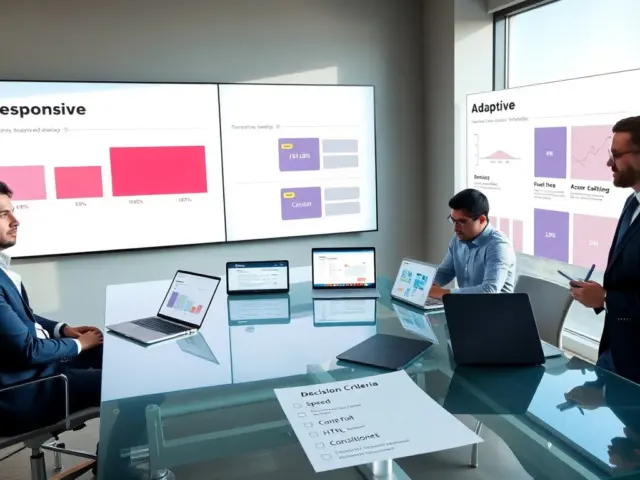
Responsive layouts adapt content to the current screen and input method. Designers use flexible grids and breakpoints to move elements smoothly. They prioritize content that users need first on small screens. These ux design examples help users complete tasks on phones, tablets, and desktops.
Navigation changes by device. On desktop, designers place global navigation at the top or side. On mobile, designers collapse navigation into a bottom bar or hamburger menu. They keep primary actions within thumb reach. They hide secondary links behind patterns like accordions or secondary drawers. These choices make navigation easy on small screens.
Images and media scale with container size. Designers use srcset and responsive image formats to serve the right asset. They lazy-load below-the-fold media to speed up the page. Performance gains reduce bounce and improve perceived quality. These ux design examples link layout with performance.
Touch targets need to meet size guidelines on touch devices. Designers increase spacing and use clear hit areas. They prevent accidental taps by adding confirmation for destructive actions. They also design keyboard focus states for desktop users who rely on keys. These steps make navigation reliable for all users.
Designers test responsive patterns across real devices and network speeds. They run usability sessions on phones and tablets. They measure task success and time to completion. They refine layouts that cause hesitation. These ux design examples come from measured changes that improve real user outcomes.
Concrete responsive strategies to apply:
- Mobile-first design: design for the smallest screen first so priorities are clear, then add progressive enhancements for larger screens.
- Fluid grids and modular components: build components that adapt in width and column span rather than creating separate layouts per breakpoint.
- Adaptive navigation patterns: use bottom navigation for primary actions on handheld devices, and expose secondary navigation in expandable panels.
- Performance-focused assets: serve optimized SVGs or modern image formats, defer nonessential scripts, and preconnect to critical resources.
Testing checklist for multidevice UX:
- Run tasks on at least three screen sizes and two network profiles (fast, slow).
- Verify touch target sizes and spacing with a ruler or in-device inspector.
- Confirm keyboard navigation and focus order on desktop.
- Audit images and media to ensure appropriate srcset breakpoints and lazy loading behavior.
Bringing it together: teams turn ux design examples into durable improvements by documenting patterns in a component library, writing implementation guidelines for engineering, and recording success metrics for each change. That discipline transforms isolated wins—like a clearer microinteraction or a shorter onboarding step—into lasting product quality that scales across platforms and user segments.